
In modern everyday life, personal computers, smartphones, and household electronics have shifted from luxury items to basic essentials. We manage the vast majority of our digital paperwork, administrative tasks, and personal projects right from home. However, when physical documentation is required, many people still rely on commercial print shops or office hardware. For years, keeping a dedicated printer at home felt impractical for the average user. The initial investment, paired with constant maintenance and overpriced consumables, made home printing a financial money pit. Unless you were running a home office, paying a local copy shop a few cents per page was simply the smarter choice.
Eventually, hardware manufacturers shifted strategies and introduced ultra-budget models to entice home users. Electronics stores began stocking desktop printers for as low as $40 to $50. At first glance, this seemed like an incredible deal, but buyers quickly discovered the hidden catch: the razor-and-blades business model. These entry-level machines were sold at or below cost, while replacement ink cartridges were priced astronomically high. A single set of black and color cartridges often cost the same as—or more than—the original printer unit itself. To make matters worse, standard starter cartridges yielded barely 100 to 150 pages before running dry or clogging. This expensive feedback loop frustrated consumers and left the home printer market stagnant for years.
The Refillable Tank Revolution and Why I Made the Switch
The turning point for consumer printing came when Epson introduced Continuous Ink Supply System (CISS) designs to the mass market, replacing tiny disposable cartridges with large built-in ink reservoirs. Instead of buying expensive plastic cartridges every few months, users could simply pour bulk liquid ink directly into integrated side tanks. This structural change radically lowered operating costs, made ink visible at a glance, and turned desktop printers into practical household devices. Canon soon followed suit with its G-series Megatank line.
I decided to test this tech firsthand when I ran into a practical bottleneck with my personal hobbies. As a gaming enthusiast, I wanted to print fresh, high-quality replacement cover art for my PlayStation game collection. Ordering custom photo-paper prints from commercial printing services quickly proved surprisingly expensive for small, custom batches. (I have already published my PlayStation 1 article on the site if you would like to check it out.
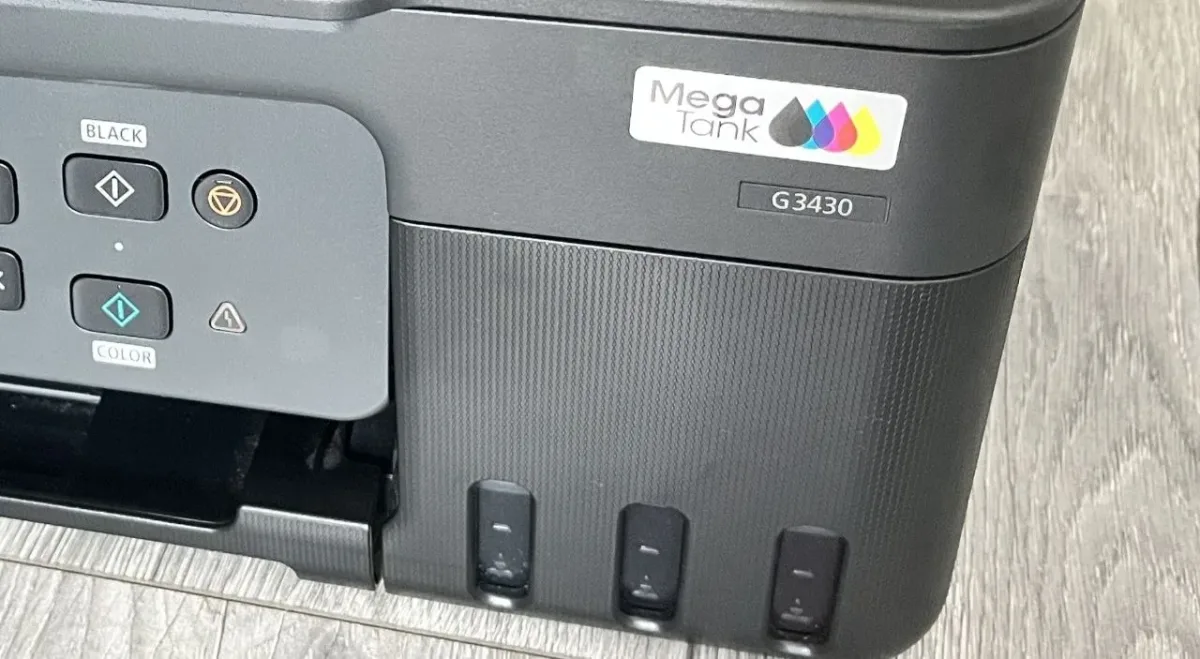
When I spotted the Canon PIXMA G3430 on sale for approximately $175—packaged with a complete set of initial ink bottles—it made financial sense to invest in a home unit. Today, after extensive everyday testing across document printing, color covers, and multi-device connection tests, I am sharing a practical breakdown of how this printer performs in a real home setup.
Unboxing, Initial Setup, and Real-World Capacity
Out of the box, the Canon PIXMA G3430 comes bundled with essential startup items: a standard power cable, a USB Type-B to Type-A printer cable for direct PC connectivity, and four starter ink bottles (Black, Cyan, Magenta, and Yellow). It is worth noting that the bundled starter bottles contain roughly half the volume of standard retail refill bottles. However, even this partial factory fill carries impressive capacity.
Canon claims the bundled starter ink can yield up to 2,000 black-and-white pages. In practical everyday use, I did not count every single sheet, but the starter batch lasted an exceptionally long time before requiring a top-up. Compared to older cartridge-based printers that demanded a fresh $50 cartridge set after printing a tiny stack of papers, the capacity on this tank system is a massive functional upgrade.
Wireless Connectivity and the Wi-Fi Buffer Limitation
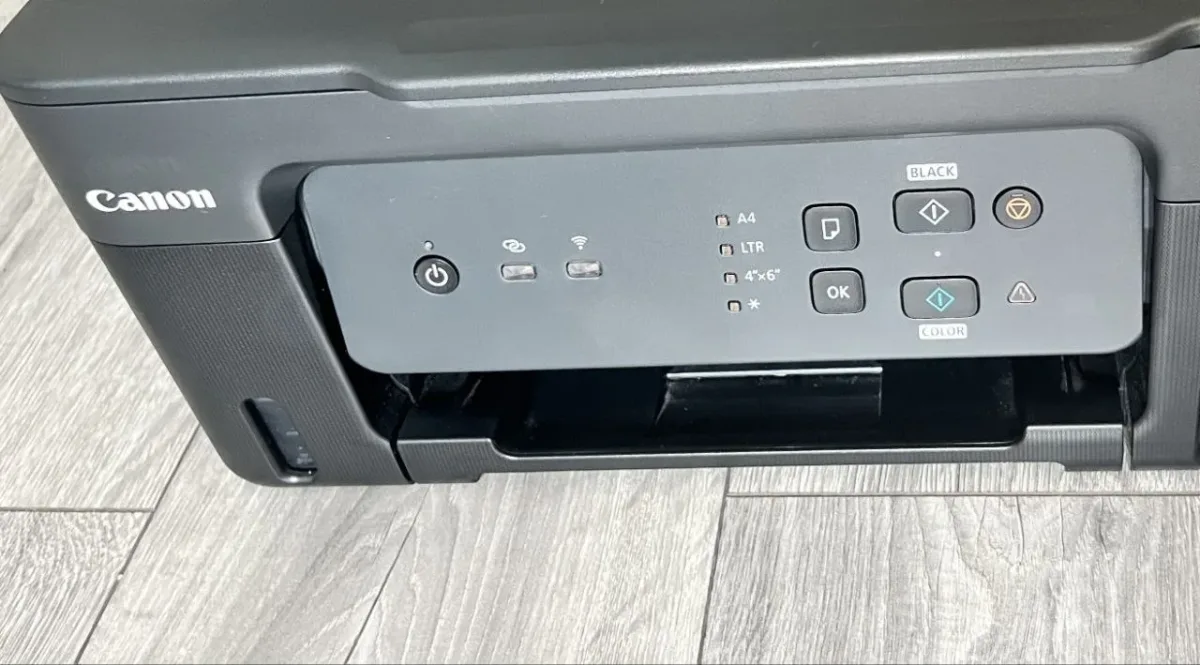
Canon designed the PIXMA G3430 with modern wireless workflows in mind. For mobile printing, you install the official Canon PRINT app on a smartphone, pair the device to your Wi-Fi network, and send documents or photos directly to the print queue. Laptop and desktop integration over Wi-Fi is similarly simple, requiring minimal setup on Windows or macOS.
However, real-world testing revealed a specific limitation regarding network job handling and print speed:
High-Volume Spooling Drops: When sending multiple high-resolution files or a dense queue of separate documents simultaneously over Wi-Fi, the printer’s internal memory buffer can become overwhelmed. During my tests, pushing a bulk queue caused the network connection to time out, forcing the printer to freeze mid-job and requiring a manual restart of the print queue.
The Solution: The Wi-Fi module in entry-level tank printers is optimized for sequential processing rather than heavy simultaneous data spools. Sending documents one by one or batching multi-page PDFs into single continuous print commands completely eliminates connection drops.
Duplexing, Scanning, and Daily Functionality
To keep the price point near $175, Canon omitted certain automated hardware features on the G3430:
Manual Duplex Printing: The printer lacks an automatic double-sided printing unit (auto-duplexing). If you need to print on both sides of a page, you must manually re-insert the printed stack into the rear tray in the correct orientation. While automatic duplexing is convenient for massive 50-page manuals, manual flipping is easy to manage for everyday home printing and keeps paper consumption low.
Built-In Flatbed Scanner: The unit includes an integrated CIS flatbed scanner on top. While scanning speeds are relatively modest, having a full-color scanner and copier integrated into a low-cost device adds tremendous utility. Scanning receipts, signed forms, and documents works reliably without needing dedicated office hardware.
Photo and Cover Printing: Printing color artwork on heavy glossy photo paper produces vibrant results. The color density and line clarity on full-bleed custom PlayStation covers met all my expectations, making it a capable machine for light media printing.
Ink Economics: OEM GI-41 vs. Compatible Third-Party Bottling
The Canon PIXMA G3430 utilizes Canon’s GI-41 ink bottle system (GI-41 PGBK for Pigment Black and GI-41 C/M/Y for Dye-based colors).
| Ink Option | Average Cost (Set) | Estimated Page Yield |
| OEM Canon GI-41 Set | $40 - $60 | ~6,000 Black / 7,700 Color |
| Third-Party Compatible | $15 | ~5,000 - 6,000 Pages |
An original full set of OEM Canon GI-41 bottles costs between $40 and $60 depending on your region. Given that a full OEM set delivers approximately 6,000 black pages and up to 7,700 color pages, the cost per page is already fractions of a cent.
To lower operational costs even further, I acquired a set of high-quality compatible third-party ink bottles from an online retailer for just $15—roughly one-third the price of OEM ink. Print quality and color accuracy remained clean, with zero clogging issues during standard use.
Refilling the tanks is completely clean and spill-free thanks to Canon's physical key-lock design. Each bottle top features a unique mechanical notch pattern matching only its designated color tank. The valve opens only when correctly seated on the tank inlet and instantly seals off when lifted, preventing accidental spills or cross-contamination.
Essential Maintenance: Preventing Printhead Clogs
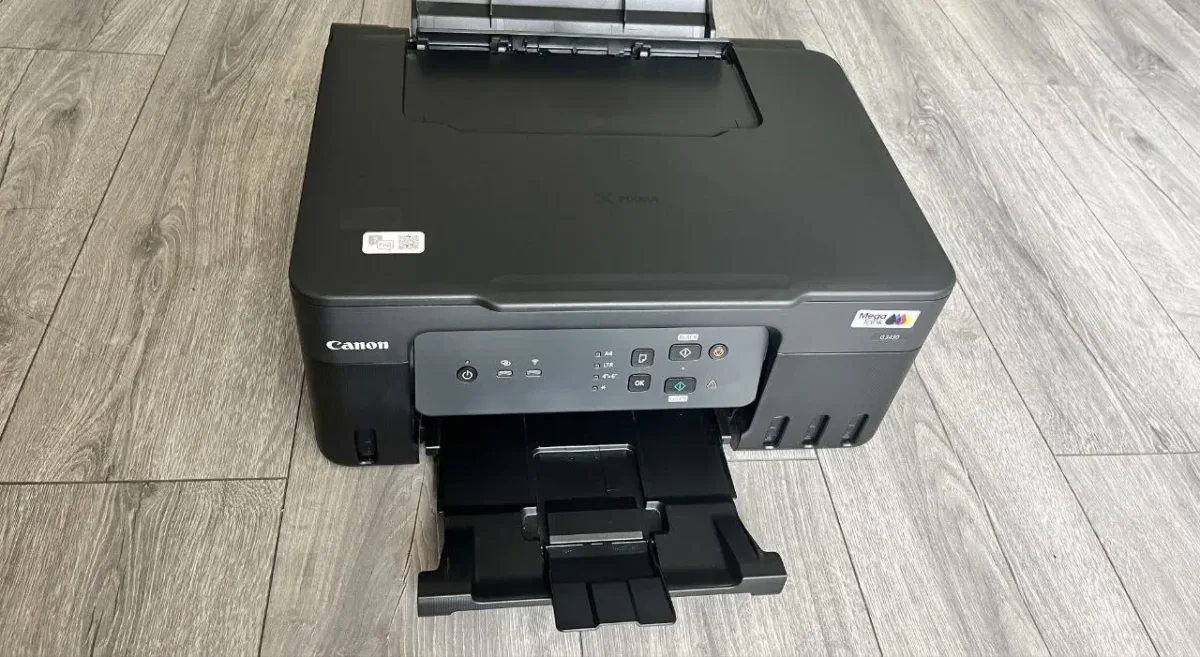
While ink tank printers offer exceptional value, they require proper operational habits to avoid mechanical issues—specifically, ink drying out inside the printhead lines.
Because liquid ink sits inside fine feed tubes connecting the side tanks to the microscopic nozzles on the printhead, leaving the machine completely idle for weeks can cause residual ink to dry and create stubborn blockages.
To maintain clean print quality and prevent streaking:
Run Self-Cleaning Utilities: Access the maintenance menu via the Canon PRINT app or PC driver to run periodic Head Cleaning or Deep Cleaning cycles.
Weekly Maintenance Prints: Print at least one test page or color document every week to keep ink flowing smoothly through the microscopic nozzles.
Power Down Correctly: Always turn off the printer using its physical power button so the internal mechanism securely caps the printhead assembly, protecting it from air exposure.
Taking these basic preventive steps ensures your ink tank system remains reliable, highly cost-effective, and ready for any home task.